
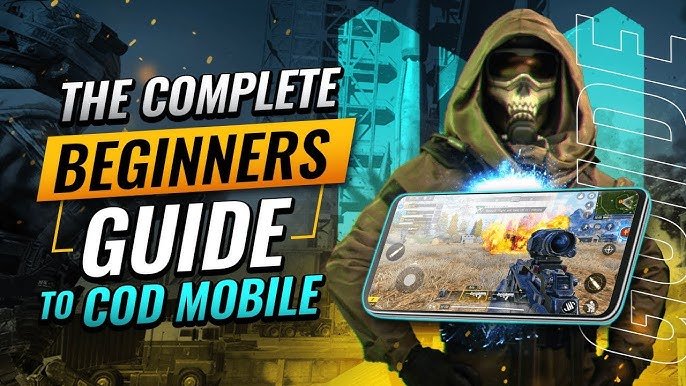
So, you’ve finally downloaded Call of Duty: Mobile (CODM), the game everyone has been
making a fuss about. You launch it, and you can’t seem to find your way around. Or maybe you
even did, but every single match you play, you end up dead before you even see who shot you.
At this point, you’re probably thinking, “This game is complete BS, I’m deleting it.”
Before you go ahead, you must understand that most games, whether FPS, strategy games like
chess, or even casino titles like the Aviator Spribe game, have a learning curve. And once you’ve
gotten the hang of things, your experience becomes a lot more enjoyable. That’s exactly what
this guide is here for.
We’ll walk you through the basics of getting around CODM. We’ll also help you understand
some basic settings and controls, break down the different game modes, and share some
practical tips that will actually make a difference in how you play.
Getting Around the Game (Navigation Basics)
When you first open CODM, you’ll see buttons everywhere, different menus, and notifications.
All these will definitely be confusing as a newbie. So, here’s a breakdown of the key parts of the
interface:
The Main Lobby
The main lobby is the first screen you see when you launch the game. One major part of the
lobby is the menu section, where you choose what you actually want to play. These include:
●
Multiplayer: Here, the game automatically places you in a team when you start a match,
and the matches are fast-paced with two teams facing off in different game modes.
●
Battle Royale: In Battle Royale, instead of small team matches, you’re dropped onto a
large map with many other players. The goal here is to survive longer than everyone
else. You’ll need to loot weapons, move strategically, and stay inside the safe zone.●
Ranked: Here, you play against other players who are trying to climb the ranking ladder.
The matches here tend to be tougher, so it’s usually better to spend some time
practicing in normal modes before jumping into Ranked.
You’ll also see tabs for Events and the Store. The Events section shows ongoing challenges and
limited-time missions that reward you with items, skins, and other bonuses. The Store, on the
other hand, is where you can buy cosmetic items, weapon skins, and other in-game content.
Your Profile, Loadouts, Settings, and Notifications
Another important area you’ll want to get familiar with is your profile and loadout section. Your
profile shows your level, rank, stats, and achievements. It’s basically your personal record within
the game.
The loadout menu is where you customize your weapons, perks, grenades, and operator skills.
This is one of the most important parts of CODM because the gear you choose can significantly
affect how you perform in matches. As you play more games, you’ll unlock better weapons and
attachments that you can equip here.
Then there are the settings, where you can adjust sensitivity, controls, graphics, audio, and HUD
layout. You’ll also see notifications for missions, events, and the Battle Pass, which reward you
with items and cosmetics as you play.
Understanding Game Modes
Once you’re comfortable moving around the menus, the next thing you need to understand is
the different game modes in CODM. We’ve already mentioned battle royale, multiplayer, and
ranked. Here are some other ones you’ll encounter.
●
●
●
●
Team Deathmatch (TDM): In this mode, two teams compete to see who can reach a set
number of kills first. The objective is to eliminate as many enemies as possible.
Domination: In domination, you’re not only focusing on kills, but you’re also trying to
capture locations. The longer your team holds these locations, the more score you earn.
Hardpoint: Here, your team is fighting to capture and control one active zone, the
hardpoint. You must also hold it for as long as possible to earn points.
Search & Destroy: Here, one team tries to plant a bomb at a designated site, while the
other team must defend the site and prevent the bomb from being planted.●
Free-For-All: Free-For-All removes teams completely. In this mode, everyone is playing
against everyone else. And your goal is to get as many eliminations as possible before
the match ends.
Controls & Settings
One of the biggest mistakes beginners make in CODM is playing with the default settings. While
the default setup works, it isn’t always the most comfortable or efficient for everyone. Spending
some time customizing your controls and settings can make the game feel smoother and
significantly improve your performance.
Let’s look at the key settings you should understand and tweak.
Default Control Layout: What Each Button Does
When you first start playing, CODM gives you a standard control layout on your screen. On the
left side of the screen, you’ll find the movement joystick. This is what you use to move your
character forward, backwards, or sideways.
On the right side, you’ll see buttons for firing your weapon, aiming down sights (ADS), jumping,
crouching or sliding, reloading, and throwing grenades. There are also smaller icons for things
like switching weapons, activating scorestreaks, or using operator skills.
Inside the settings menu, you can customize your button size, placement, and transparency to
fit your play style. The goal is to create a layout that feels comfortable.
Sensitivity Settings
Sensitivity affects how quickly your screen moves when you swipe. If it’s too low, your aim feels
slow, and if it’s too high, it becomes difficult to control. Start with the default settings and adjust
gradually until aiming feels comfortable.
Weapons
The weapon you use and how you set it up can make a huge difference in how well you perform
during a match. If you’re running around with the wrong weapon, fights can feel much harder
than they should be.
CODM divides weapons into several classes, each designed for a different type of combat
situation.●
●
●
●
●
Assault Rifles (ARs): ARs are the most balanced weapons in the game. They offer good
damage, decent accuracy, and effective range.
Submachine Guns (SMGs): These are fast-firing weapons designed for close-range
combat.
Sniper Rifles: These guns deal very serious damage at long range but require precise
aim, which can make them challenging for new players.
Shotguns: Shotguns are extremely powerful at close range but weak at longer distances.
Light Machine Guns (LMGs): LMGs have large magazines and strong, sustained fire, but
they tend to be slower and heavier to handle.
When you’re starting out, it’s best to use weapons that are stable, accurate, and easy to control.
Assault rifles are usually the safest choice because they perform well in both close and
medium-range fights.
Gameplay Tips for Beginners
Below are some practical beginner tips that can immediately improve how you play:
●
●
●
●
●
●
Always maintain map awareness so you know where you are and where enemies are
likely to appear.
Avoid running in the open and use walls, objects, and buildings as cover whenever
possible.
Regularly check the mini-map to track enemy gunfire, teammate positions, and
objectives.
Pay attention to sound cues like footsteps and gunshots to anticipate nearby enemies.
Keep your crosshair at chest or head level where enemies are most likely to appear.
Don’t chase kills recklessly; play smart, stay patient, and let enemies make the mistake
first.
Conclusion
If you made it this far, you should now have a clearer idea of how CODM works. The most
important thing now is practice. If you keep getting better, soon enough, you’ll also be that
player killing beginners for fun.
So, you’ve finally downloaded Call of Duty: Mobile (CODM), the game everyone has been
making a fuss about. You launch it, and you can’t seem to find your way around. Or maybe you
even did, but every single match you play, you end up dead before you even see who shot you.
At this point, you’re probably thinking, “This game is complete BS, I’m deleting it.”
Before you go ahead, you must understand that most games, whether FPS, strategy games like
chess, or even casino titles like the Aviator Spribe game, have a learning curve. And once you’ve
gotten the hang of things, your experience becomes a lot more enjoyable. That’s exactly what
this guide is here for.
We’ll walk you through the basics of getting around CODM. We’ll also help you understand
some basic settings and controls, break down the different game modes, and share some
practical tips that will actually make a difference in how you play.
Getting Around the Game (Navigation Basics)
When you first open CODM, you’ll see buttons everywhere, different menus, and notifications.
All these will definitely be confusing as a newbie. So, here’s a breakdown of the key parts of the
interface: